
Transform
Harmonize
Quantizes incoming notes to a scale and generates chords. Two independent keyswitch banks let you change scale, chord, and voicing in real time from a keyboard. Works on notes only.
Overview
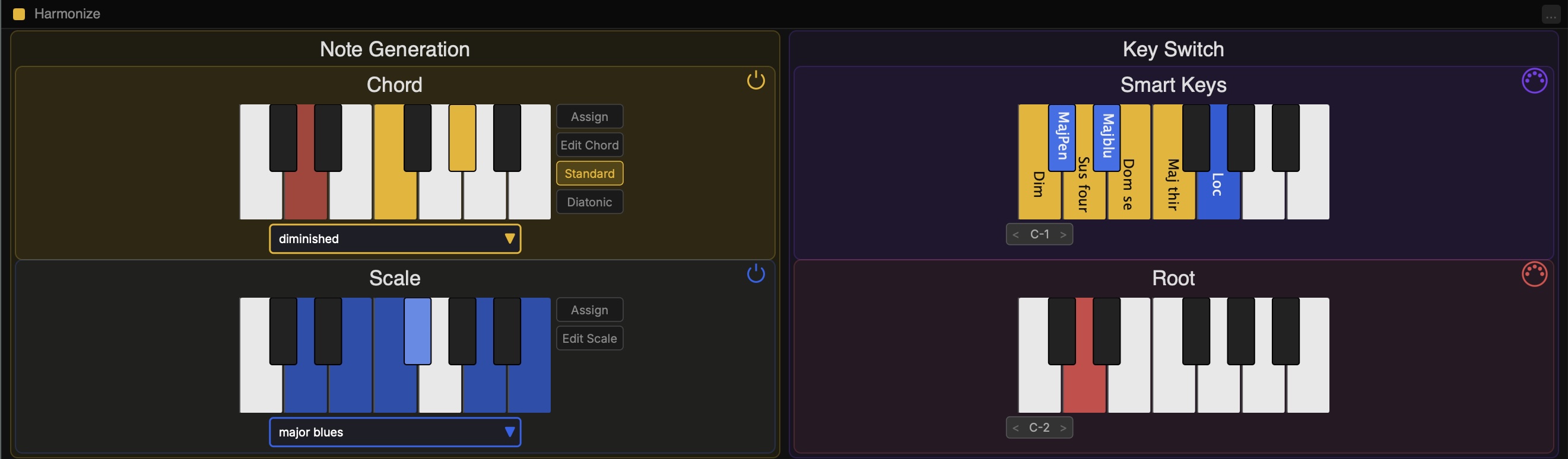
Harmonize has two main sets of controls. The left side (Note Generation) controls scale quantization and chord building. The right side (Key Switch) controls the two keyswitch banks that let you change settings live from a MIDI keyboard.
Scale and chord are independent — you can quantize without chords, build chords without quantizing, or do both together.
Scale Quantization
When Scale is active, incoming notes are snapped to the nearest note in the active scale before any further processing. Enable Scale with the power icon on the Scale sub-island.
Chord Generation
When Chord is active, a chord is built above each incoming note. Enable Chord with the power icon on the Chord sub-island.
Key Switch Banks
The right side of the editor contains two keyswitch banks — Root and Smart Keys — each covering one octave of your keyboard. Enable each bank with its MIDI DIN icon and choose the octave you want it to respond to.
Custom Scales and Chords
You can create and save your own scales and chords. In edit mode, click semitones to include or exclude them, then save with a name. Custom scales and chords appear at the top of their respective popup menus. Note that the current root note determines the root of the scales and chords.
Custom scales and chords are stored as files in your Documents folder and are available across all instances and sessions. They are also embedded in session state so they transfer correctly when sharing sessions.